In 2020, Crossref’s board voted to adopt the Principles of Open Scholarly Infrastructure, and we completed our first self-assessment. We published our next reviews in March 2022 and December 2024. We are happy to present our latest self-assessment showing there are improvements in a number of areas representing steady progress but there are a few areas to work on and improve.
Ed Pentz, our Executive Director, opened the 2026 Annual Meeting by introducing the theme: Good infrastructure is patient work. Crossref provides foundational infrastructure: an open, persistent scholarly record of metadata, relationships, and identifiers that thousands of tools and services build on. Maintaining that infrastructure and creating lasting value depends on sustained collective effort. True persistence requires active governance, long-term financial commitment, and organisational stewardship.
In 2022, we committed to balancing our working practices and environmental impact, and to openly reporting on those efforts. This is our third report on Crossref’s annual carbon footprint and reflects as much our emissions as it does our learning process. Travel remains the main area of our environmental impact. In 2025, our total emissions were 170 tCO2e, a 3% increase from 2024, with travel accounting for 85% of the total. A big change this year is that we have greater visibility into our AWS-related emissions. With the full transition of our metadata registry and content registration system to the cloud and significantly increased API use, we’re seeing higher carbon costs to host and run our services.
As we approach the end of 2026, research integrity remains a critical focus for the scholarly publishing ecosystem: fast technological advancements are constantly pushing the boundaries of integrity, impacting how everyone in this space interacts with the scholarly record.
This section is for Similarity Check account administrators using iThenticate 2.0 through the browser, and describes how you can manage exclusions within your account settings..
Not sure if you’re using iThenticate v1 or iThenticate 2.0? More here.
Not sure whether you’re an account administrator? Find out here.
Exclusions
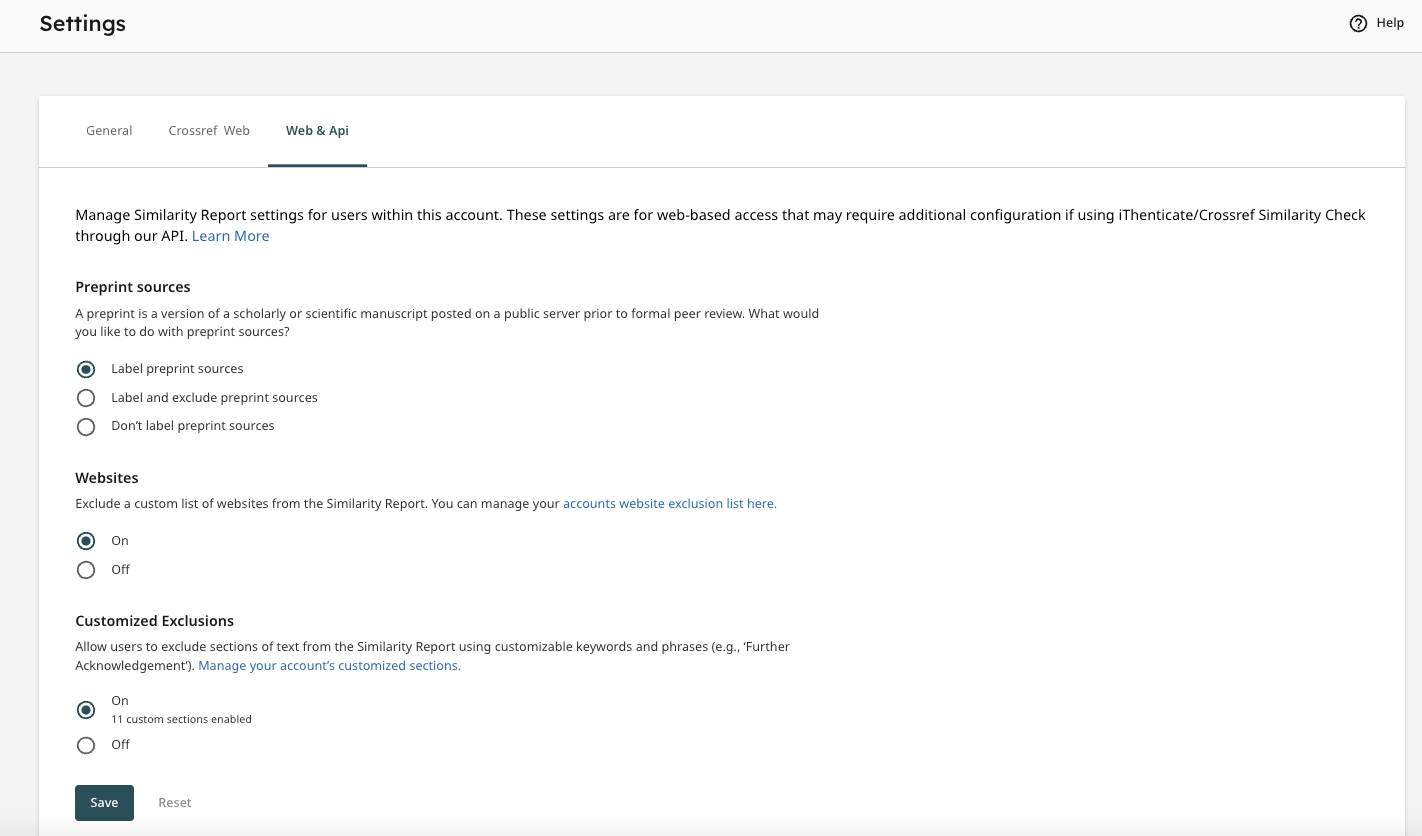
If you want to exclude items from your Similarity Report results, you can do this by clicking on Settings in the left hand menu in iThenticate 2.0 homepage. There are two tabs where you can change different items - one is labelled Crossref Web, and the other is labelled Web and API. Here are the various items you can exclude.
Preprint Label and Exclusions
iThenticate 2.0 introduces a new feature which will automatically identify preprint sources within your Similarity Report. This will allow you to easily identify preprints so your editors can make a quick decision as to whether to investigate this source further or exclude it from the report.
In order to start using this feature you will need to configure it within the iThenticate settings by logging directly into your iThenticate account. You can find instructions on how to configure this feature in Turnitin’s help documentation.
You also have the option to automatically exclude all preprint sources from reports. All excluded preprints will still be available within the Similarity Exclusions panel of your Similarity Report and can be reincluded in the report.
Further details of how preprints appear within the Similarity Report can be found in Turnitin’s help documentation .
The Website Exclusions setting will allow you to automatically exclude all matches to specific websites. Instructions on how to turn on and configure this feature can be found in Turnitin’s help documentation.
This feature will only exclude matches in the Internet repository. If a journal website is added to the list of excluded websites then all pages which have been crawled and indexed into Turnitin’s Internet repository will be excluded. However, journal articles from that journal which appear in the Crossref repository will not be excluded.
This feature will apply to all submissions made to the iThenticate account; including all web submissions and submissions made through any integration.
All excluded matches will still be available within the Similarity Exclusions panel of your Similarity Report and can be reincluded in the report. Further details of how these exclusions will appear can be found in Turnitin’s help documentation.
Customized Exclusions
A new feature in iThenticate 2.0 is Customized Exclusions. The Customized Exclusions setting allows administrators to create sections of text that can be excluded from the Similarity Report. Administrators can tailor these keywords and phrases to best meet the needs of their organisation (for example, ‘Further Acknowledgments’).